Design assets
The CSV / XLSX files that drive task generation for `cbc` and `maxdiff` questions. Authors design the experiment externally (Excel, R, Sawtooth, custom scripts), upload the result into the platform's Designs panel, and reference it by name from a question's `design:` property. The platform reads designs — it doesn't generate them.
What a design asset is
A design asset is the task plan for a CBC or MaxDiff exercise — which concepts (CBC) or items (MaxDiff) appear on which task, across multiple versions of the experiment. It’s an authored artefact, not generated inside the platform: build the design in your tool of choice, upload it to the Designs panel, and reference it by name.
- qid: QChoice
    type: cbc
    design: laptop_design_v3      # ← references the uploaded asset
    versionSource: QVersion.selected
design: is the asset’s name in the Designs panel; an
unrecognised name produces a “Design
The Designs panel
Design assets are uploaded and managed through the Design assets tab in the platform’s top navigation (next to Builder, Lists, Quotas). MaxDiff designs live in a sibling MaxDiff tab — the two are separate panels with the same shape but different file formats.
The panel is a two-pane layout:
- Left sidebar — a list of every uploaded design, with a
search box, type filter (
All/CBC/MAXDIFF), and an Upload design file button at the bottom. Each row shows the design name, its type tag (CBC/MAXDIFF), and a one-line summary (12 tasks · 3 conceptsfor CBC, or12 tasks · 4 items/task · 16 itemsfor MaxDiff). - Right detail pane — opens when a design is selected. See Detail view below.
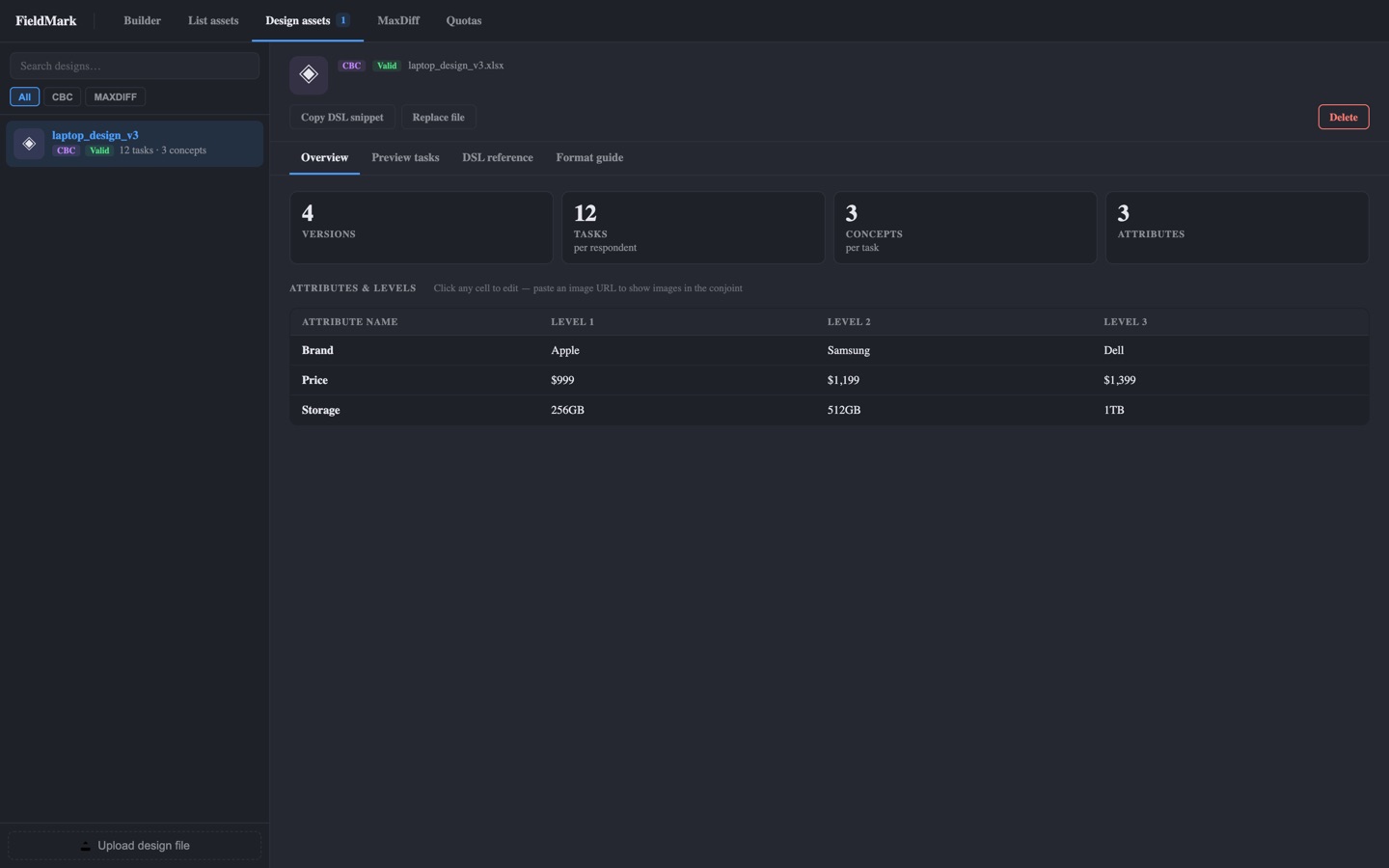
The list keeps designs scoped to the project; deleting a design
here only removes the asset from the platform, not from any
external file you uploaded it from. There’s no “valid /
invalid” indicator on rows yet — every saved design currently
shows a Valid tag regardless of warnings.
Uploading a design
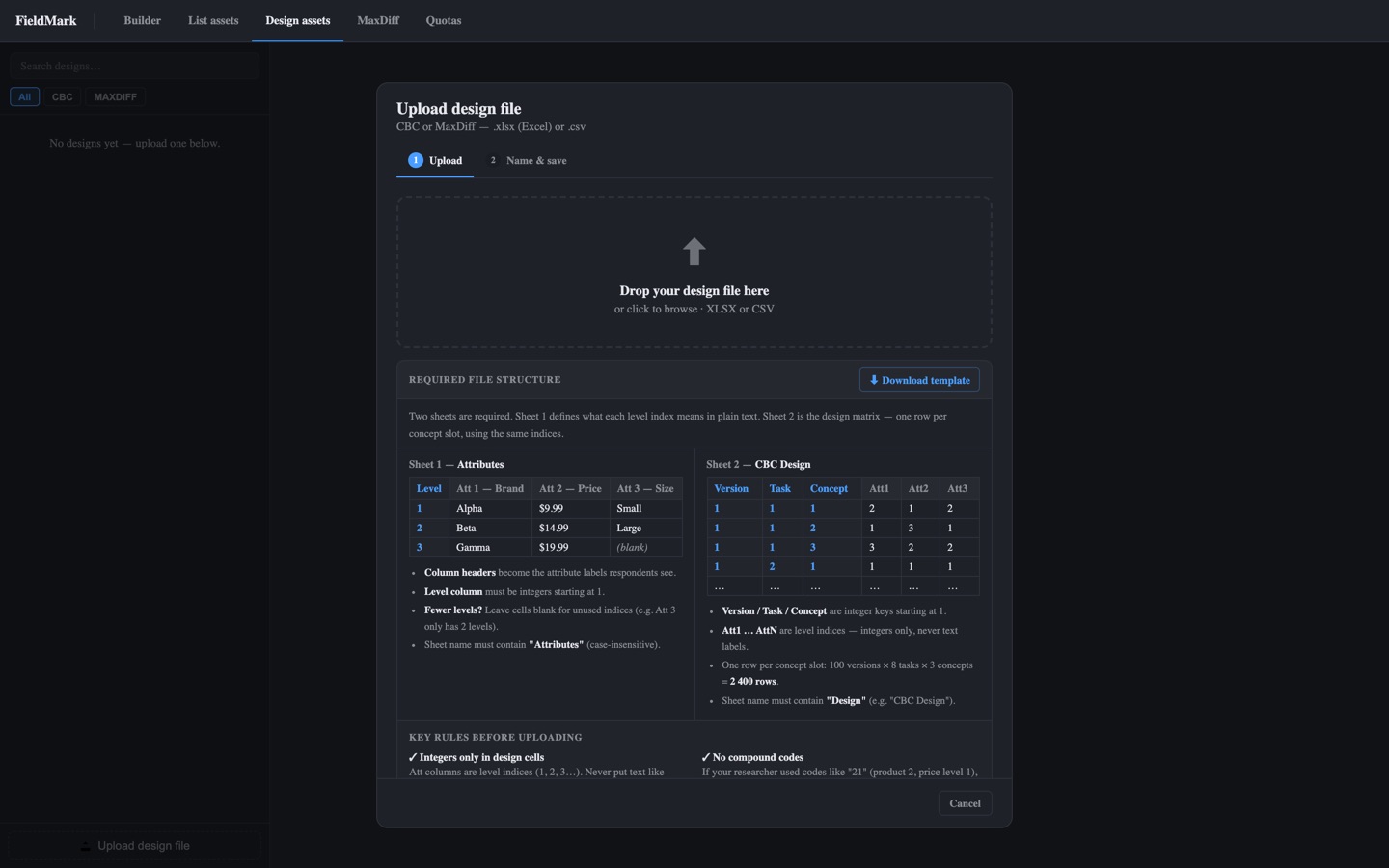
Click Upload design file in the sidebar footer. A two-step modal opens.
Step 1 — pick the file
A drop zone titled “Drop your design file here” accepts .xlsx or .csv. Either drop a file or click to browse.
Below the drop zone, the modal shows:
- A ⬇ Download template button — produces a
cbc-design-template.xlsx(ormaxdiff-design-template.xlsxfor the MaxDiff panel) pre-populated with a small but valid example design. Useful when starting from scratch or sharing a known-good template with a researcher. - A side-by-side preview of the two required sheets, with the expected column headers and example rows.
- A “Key rules before uploading” checklist (integers only, no compound codes, no formula cells, no merged cells, complete versions, consistent task and concept counts).
If the file fails to parse, an error banner appears inline within the modal — see Validation feedback.
Step 2 — name and save
After a successful parse the modal advances to step 2, showing a read-only summary of the parsed metadata:
| Field | Meaning |
|---|---|
| Source file | Original filename |
| Type | CBC or MAXDIFF |
| Versions | Distinct Version values found |
| Tasks per version | Distinct Task values within a version |
| Concepts per task | CBC only — distinct Concept values within a task |
| Items per task | MaxDiff only — number of Item* columns |
| Attributes | CBC only — number of attribute columns |
| Total rows | Total cells / tasks parsed |
A Design name input is pre-filled with the filename minus
its extension. The string typed here is what the YAML’s
design: property must reference — the lookup is exact-match
case- and whitespace-sensitive, so LaptopDesign_v3 and
laptop_design_v3 are two different designs.
A live preview line beneath the input shows what the YAML reference will look like:
This becomes your DSL reference:
design: laptop_design_v3
Click Save design to commit. Cancel discards both the name and the parsed file.
The detail view
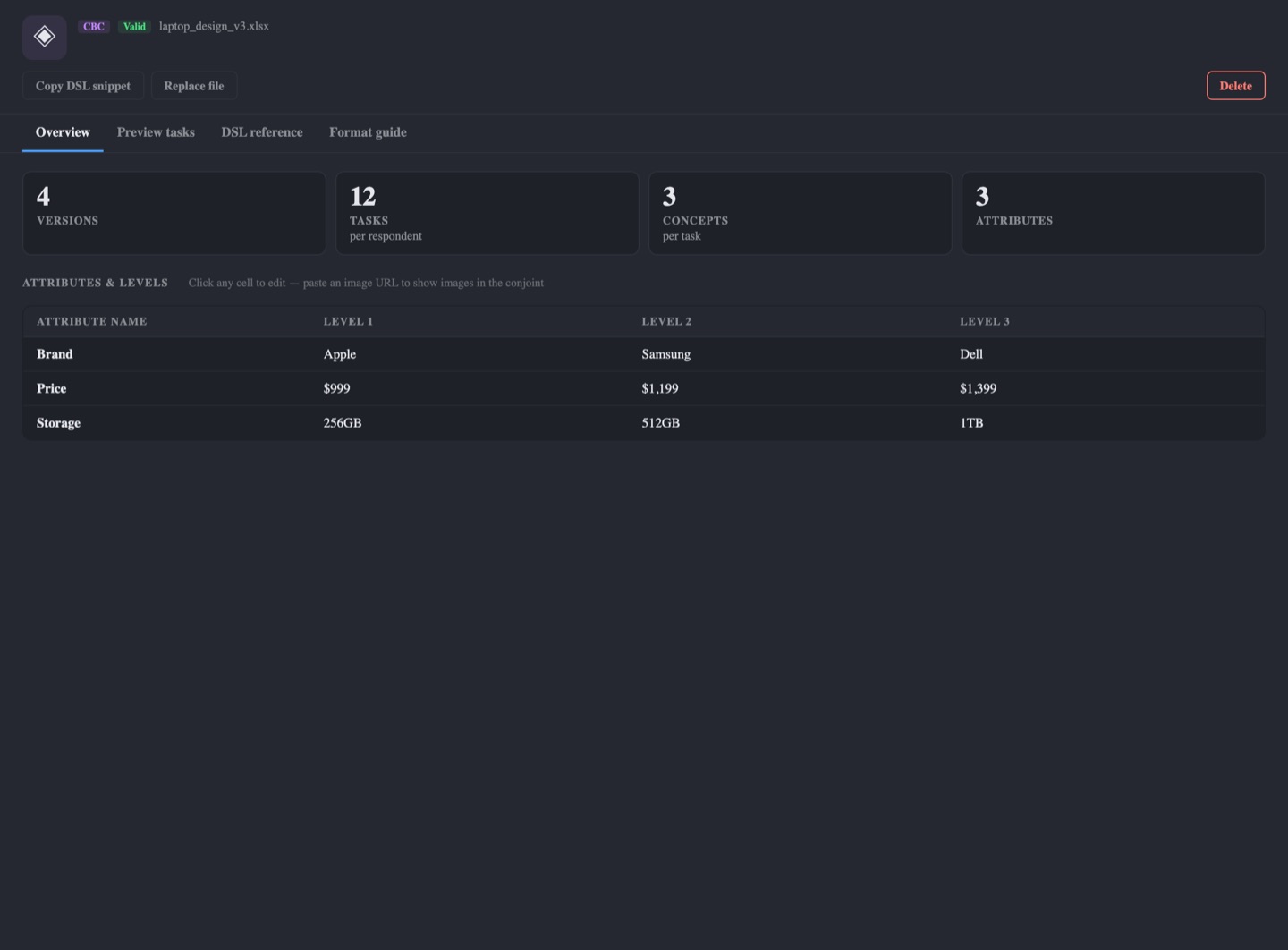
Selecting a design from the list opens the right pane. Top to bottom:
- Header — design name, type tag (
CBC/MAXDIFF), a hard-codedValidtag, the upload date, and the original source filename. - Action bar — three buttons:
- Copy DSL snippet — copies a ready-made YAML block
that uses the design (a hidden
QVersionrandomised single, plus the question withdesign:/versionSource:set up). - Replace file — re-opens the upload modal pre-loaded with the current name. Useful for fixing a parse error without losing the YAML reference (the design name stays the same unless you change it on the way out).
- Delete — removes the asset.
- Copy DSL snippet — copies a ready-made YAML block
that uses the design (a hidden
- Tab strip with four tabs:
| Tab | Shows |
|---|---|
| Overview | A 4-card stats grid (Versions / Tasks per respondent / Concepts per task / Attributes), then an editable Attributes & Levels table. Click any cell to rewrite a label; paste an image URL into a level cell to render a thumbnail (used when the question uses style: image_profiles). |
| Preview tasks | An interactive replica of the respondent CBC / MaxDiff layout, with ← Prev / Next → buttons, a version selector, and (for image-bearing designs) S / M / L / Original image-size presets. Selections are visual only; nothing persists. |
| DSL reference | Generated YAML snippets the author can copy directly: a hidden version-randomisation question, plus question shells for each response mode (choice / rating / rank for CBC; the standard MaxDiff shape for MaxDiff). Each block has its own copy button. |
| Format guide | A static reference describing the two-sheet structure, column conventions, the rules-before-uploading list, and common mistakes from researcher-supplied files. |
The Preview tasks tab is the fastest sanity check after upload — clicking through the versions and tasks confirms the design renders the way you expected.
Validation feedback
Errors and warnings surface as a single banner inline within the upload modal — there’s no separate diagnostics panel and no per-row health indicator on saved designs yet.
Common error strings
| Error | Cause |
|---|---|
Attributes sheet is empty or missing | XLSX has no sheet called Attributes, or the sheet has no rows. |
No attribute columns found in Attributes sheet. | The Attributes sheet has a header but no data columns. |
CBC Design sheet is empty or missing | XLSX has no sheet called CBC Design. |
No header row found in CBC Design sheet. Expected columns: Version, Task, Concept. | The design grid sheet starts with data instead of a header row. |
No "Version" column found in CBC Design sheet. (and Task / Concept equivalents) | Required column header is missing or misspelled. |
CSV must have version, task, and concept columns. | CSV upload missing one of the three required columns. |
No design rows found. / No data rows found in CSV. | The grid is empty after the header. |
Cell v<v> t<t> c<c> has <n> level values but <m> attributes are defined. | A row in the design grid has fewer or more attribute columns than declared in the Attributes sheet. |
Failed to parse Excel file: ... | The file couldn’t be read by the XLSX parser. Common cause: the file contains formula cells or merged cells. |
MaxDiff has its own equivalents — No "Version" column found.,
No "Set"/"Task" column found., Could not find Item columns (expected Item1, Item2, ... after Version and Set)., Items per task is less than 2 — MaxDiff requires at least 2 items per set.
Warnings (allow upload, flag for review)
| Warning | Cause |
|---|---|
Attribute "<name>": level <n> not defined. | A level index used in the design grid isn’t in the Attributes sheet. The cell renders the index number rather than a label. |
Item code <n> appears in tasks but has no label defined. (MaxDiff) | An item code in the design grid isn’t in the Items sheet. |
No versions detected. / No tasks detected. | The parser found rows but couldn’t extract a meaningful version or task structure. |
No item labels found. Items will be shown by code number. (MaxDiff) | The Items sheet is missing — items render as their numeric codes. |
Always check for warnings before fielding. The Valid tag in
the sidebar is currently hard-coded — it doesn’t reflect parse
warnings.
The platform doesn’t generate designs
There is no built-in design generator — no fractional factorial, no balanced overlap algorithm, no full factorial expansion. The platform parses uploaded designs, validates them, hands them to the renderer, and that’s it.
Generate your design externally:
- Sawtooth Lighthouse Studio for production CBC/MaxDiff
- R with
support.CEs,idefix,AlgDesign, etc. - Excel for trivial designs you can lay out by hand
- Python with
pyDOE2/pyDOE3
When starting from scratch, the Download template button in the upload modal hands you a known-good starting layout — see Step 1 — pick the file.
CBC design format
XLSX (preferred)
Two sheets:
Sheet 1 — Attributes. Column A is the level index;
columns B onwards are the attribute names with each level’s
text in the corresponding row.
| level | Brand | Price | Storage |
|---|---|---|---|
| 1 | Apple | $999 | 256GB |
| 2 | Samsung | $1,199 | 512GB |
| 3 | Dell | $1,399 | 1TB |
Sheet 2 — CBC Design. One row per concept per task per
version:
| Version | Task | Concept | Att1 | Att2 | Att3 |
|---|---|---|---|---|---|
| 1 | 1 | A | 1 | 2 | 3 |
| 1 | 1 | B | 2 | 1 | 1 |
| 1 | 1 | C | 3 | 3 | 2 |
| 1 | 2 | A | 2 | 3 | 1 |
| … | … | … | … | … | … |
Each Att* cell is the level index (a row in the Attributes
sheet), not the level text. The number of attribute columns
must match the number of attributes declared in Sheet 1.
CSV (alternative)
Just the design grid — no Attributes sheet. The required column
headers are Version, Task, Concept, then one column per
attribute:
Version,Task,Concept,Brand,Price,Storage
1,1,A,1,2,3
1,1,B,2,1,1
1,1,C,3,3,2
1,2,A,2,3,1
Without the Attributes sheet you only get the level indices
in the export — the platform doesn’t know what 1 means in the
Brand column. XLSX with both sheets is the safer format.
What the parser produces
When the platform reads a CBC design, it normalises into:
{
  moduleType: 'cbc',
  versions: 4,                  // distinct Version values
  tasksPerVersion: 12,          // distinct Task values within a version
  conceptsPerTask: 3,           // distinct Concept values within a task
  attributes: [
    { index: 1, label: 'Brand', levels: [
        { index: 1, label: 'Apple' },
        { index: 2, label: 'Samsung' },
        ...
    ]},
    ...
  ],
  cells: [
    { version: 1, task: 1, concept: 'A', levels: [1, 2, 3] },
    ...
  ]
}
Authors don’t need to read this directly — it’s the shape the platform uses internally. Useful when debugging “why does my design render this way.”
MaxDiff design format
XLSX
Two sheets:
Sheet 1 — Items. Two columns: item code (an integer) and
item label.
| code | label |
|---|---|
| 1 | Battery life |
| 2 | Camera quality |
| 3 | Screen brightness |
| 4 | Storage capacity |
| … | … |
Sheet 2 — MaxDiff Design. One row per task per version:
| Version | Task | Item1 | Item2 | Item3 | Item4 |
|---|---|---|---|---|---|
| 1 | 1 | 3 | 7 | 12 | 5 |
| 1 | 2 | 1 | 9 | 4 | 11 |
| 1 | 3 | 8 | 2 | 6 | 10 |
| … | … | … | … | … | … |
Each Item* cell is the item code (a row in the Items
sheet), not the label. The number of item columns is the
items-per-task — typically 4 or 5.
Codes vs labels
A common upload mistake: putting labels in the design grid instead of codes. The renderer looks up codes in the items table — labels in the grid won’t resolve to anything. The Designs panel’s validation surfaces this as “unknown item code” warnings.
What the parser produces
{
  moduleType: 'maxdiff',
  versions: 4,
  tasksPerVersion: 12,
  itemsPerSet: 4,
  totalItems: 16,
  tasks: [
    { version: 1, task: 1, items: [3, 7, 12, 5] },
    ...
  ],
  items: [
    { code: 1, label: 'Battery life' },
    ...
  ]
}
Validation rules
The platform validates designs at upload time. Errors block the upload; warnings let it through but flag issues to fix.
Errors (block upload)
Design has no cells.— the design grid is empty.- Missing required column —
Version,Task,Concept(CBC) orVersion,Task(MaxDiff) are mandatory headers. - Per-cell level-count mismatch (CBC) — a row has fewer or more attribute columns than declared in the Attributes sheet.
Warnings (upload, but flag)
- Undefined level index (CBC) — a level value in the design grid doesn’t exist in the Attributes sheet.
- Unknown item code (MaxDiff) — an item code in the design grid doesn’t exist in the Items sheet.
- No versions / tasks detected — the parser found rows but couldn’t extract a meaningful version or task structure.
The Designs panel surfaces both errors and warnings in the upload dialogue; check for warnings before fielding.
Common pitfalls
- Formula cells and merged cells — both break the parser. Save the design as values (not formulas) and unmerge any merged cells before upload.
- Gaps in version numbering — versions must be consecutive integers starting at 1. A design with only version 2 and 3 won’t behave as expected.
- Wrong column header capitalisation — the parser is
forgiving but exact-case headers (
Version,Task,Concept) are the safest. - Trailing blank rows / columns — Excel often saves these invisibly; trim before upload.
Version assignment is the author’s job
The platform doesn’t auto-assign respondents to design versions.
A respondent gets the design version that versionSource:
resolves to — typically a hidden randomised single. The
canonical pattern (used in the CBC and
MaxDiff deep-dives):
- qid: QVersion
    type: single
    visibility: hide
    text: Design version assigned to this respondent
    options:
        1: V1
        2: V2
        3: V3
        4: V4
    order: random

- qid: QChoice
    type: cbc
    design: my_design
    versionSource: QVersion.selected
order: random randomises which version each respondent lands
on. For deterministic assignment (e.g. seeded by panel ID),
write a - script: that hashes request.param("rid") to a
version code and .set(...) it to the hidden question. See
Patterns → One-shot treatment assignment.